|
Recording Modes
WM Recorder provides four
recording modes: ADA
Mode, WMX Mode, PRO Mode, and URL Mode. The PRO Mode is used only
for compatibility with older versions and is no longer recommended.
ADA and WMX are real time downloading modes. When a video
or audio is played
from the Interned WM Recorder captures the stream URL then
makes a connection to the remote website and downloads the file.
In URL mode WM Recorder can
download files from user supplied URL's.
ADA mode
is the default capturing mode and works in conjunction with the program WinPcap which allows access to the
network data. WinPcap is installed during WM Recorder installation. In
ADA mode WM
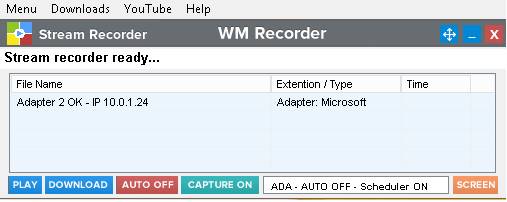
Recorder first checks your computer network when opened. If successful the
message "Stream recorder
ready..." is displayed as shown below. Network checkup could take
as long as 1 minute and during this time no capturing occurs.
WMX mode does
not require network checkup however its use is currently limited to WM
Browser. Internet Explorer can only be used however it must be opened from WM
Recorder (use the YouTube tab or click Menu, Options, Open recording
browser) . WMX should be used only if ADA mode cannot be
setup.
To change recording modes click Menu, Settings, Recording modes.
Capturing
media streams
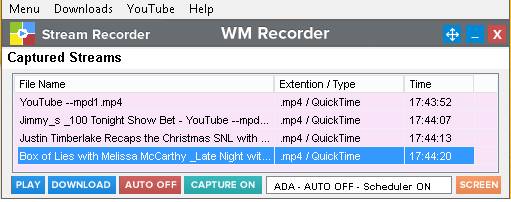
Unless the stream capture is disabled using the CAPTURE ON button the recorder is always in listening mode. The
program window is always behind the browser windows and only pops up when a
stream was captured. All captured links during a recording session are
shown in the Captured Streams
list (below).
If AUTO recording is ON (AUTO ON)
all captured links are automatically recorded. When you begin playing a
video or an audio from the Internet the file download should begin. The
Recording window becomes visible (see below) showing the download process.
If AUTO recording is OFF (AUTO
OFF) the captured streams are listed but not recorded. If you want to
download one or more streams highlight the items then click DOWNLOAD. Or, right click the selection then click Start Recording in the pop-up menu.
When recording begins the Recording Window opens as shown below. This
window controls and displays the recording activity.
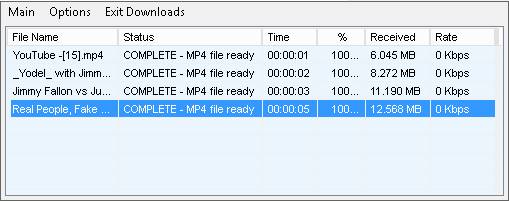
To manually open the Recording window click DOWNLOADS on the main WM
Recorder window. Click Main on the
Recorder window to return.
Downloading
YouTube videos
At this time YouTube website encrypts their videos (HTTPS). WM Recorder
does not attempt to decrypt the YouTube video files and does not install a
certificate in your computer. Open the YouTube tab on WM Recorder main menu
then click Internet Explorer or WM Browser (WM Browser is recommended).
These browsers open the YouTube site using the unencrypted HTTP protocol.
Using
the companion screen capture program (Video Clone)
Some of the Internet video and audio files cannot be downloaded due to
copyright related issues or their URL's simply cannot be detected. In this
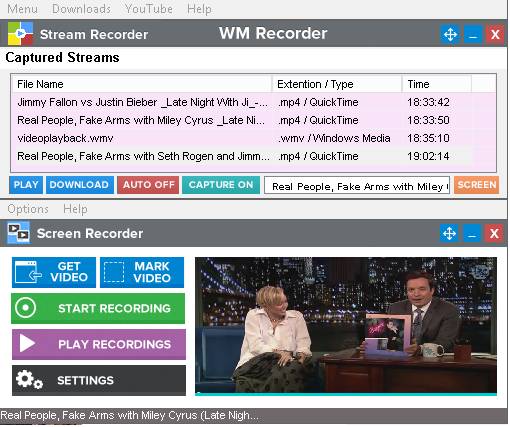
case you can use the Video Clone screen capture program which records
videos from your computer screen not from the Internet. To open or close
the Video Clone click the SCREEN button. In order to open the Video Clone when WM
Recorder starts use the Enable
screen recorder option under Menu, Options. More about using the screen
capture in the Video Clone help.
Scheduling
recordings
To schedule a recording you need the stream URL or in some cases the web site name. Right click a captured stream
in the Main window and click "Schedule
recording" in the pop-up menu. Or, open the Saved Links window
(Menu, Program Windows, Saved Links) and select
saved URL (link).
In some cases you can also use the website name instead of the stream
URL if the video or audio begins playing when the web page.
Playback
recordings
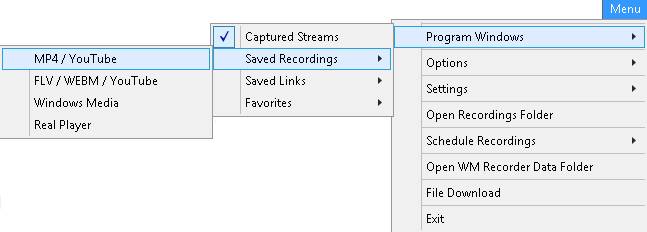
To show the recorded files click Menu, Open Recordings Folder. In addition WM Recorder saves files by
category. You can find these categories under Menu, Program Windows, Saved Recordings.
Saving
stream URL's (links)
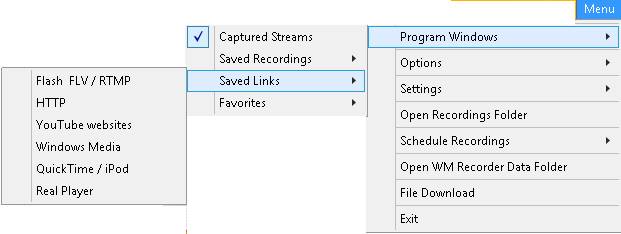
WM Recorder saves all captured URLs
(links) if the option "Saved all visited video and audio URLs" is
enabled in Settings (Menu, Settings, General). You can also manually save
captured links from the Captured Streams window. Right click the streams
then click "Save
links" in the pop-up menu. You
can use these links to record at a later time.
In some cases web sites may be changing
the URLs of their video or audio streams. When trying to record a saved URL
which is no longer valid the recorder shows a CANCELED message.
Quick
Troubleshooting
ADA Mode - Stream not captured: If you begin playing a video or
audio from the Internet and no stream is shown in either the Main window or
the Recording window this means WM Recorder did not detect the stream. Try
to reload the browser page. If nothing happens it is possible the stream is
either encrypted (copyright protection) or the stream format is not
supported.
WMX Mode - Stream not captured: Make sure the Internet Explorer or WM
Browse where opened by WM Recorder.
Same from above.
Download CANCELED: The
message CANCELED shown in the Recording window after the download started
indicates that WM Recorder has captured the stream but the remote site did
not accept the connection. Downloading the file is not possible.
If you want to learn more about WM Recorder, read the full User Guide.
© Copyright AllAlex Inc.
All recording products we sell are not intended for use in circumventing
copy protection mechanisms or for making illegal copies of copyrighted
content. Please respect the rights of the content owners when recording.
|